
World map
Upload a map you drew of your world and place codex locations on it.
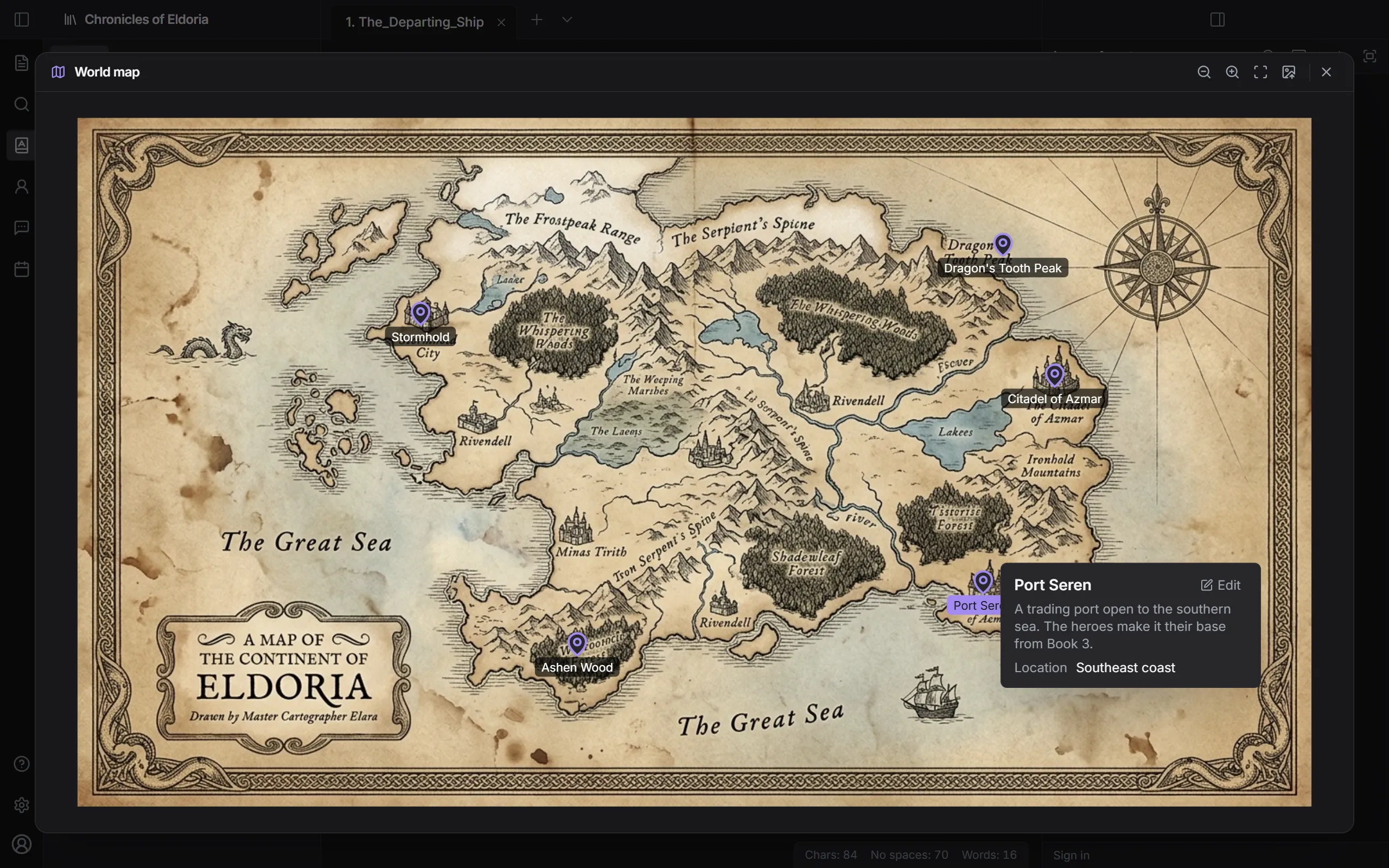
Upload a map
Section titled “Upload a map”- Click Codex on the ribbon.
- Click World map.
- Click Upload map image and choose an image.
You can upload png, jpg, webp, and gif images up to 50 MB. The image is copied into your project folder.
Place a location
Section titled “Place a location”- Right-click an empty spot on the map.
- Choose a place from the Places to place list.
The place is added where you right-clicked. Only entries in the codex Places category appear in the list. If there are none, create them in the codex first.
Move and view places
Section titled “Move and view places”- Drag a marker to move it.
- Click a marker to see a summary card. Click Edit to open that place’s editor tab.
- Right-click a marker and click Delete to remove it from the map. The codex entry isn’t deleted.
View the map
Section titled “View the map”Use Zoom in, Zoom out, and Fit to screen at the top. If you Change image, your markers stay in place.
Press Esc or click Close to close the world map.